Showing posts with label windows. Show all posts

What if, you cannot find the run option from the start menu.


This problem occurs mainly in the windows 7 operating system. However, windows 7 is providing excellent control over the start menu. You can choose and arrange the options, which will appear in the start menu.


Let us have a look that, how you will personalize the start menu:
      Step 1: give a right click on the task bar and then click on properties.

Step 2: After that, a dialogue box will appear like the following-
       
Step 3: click on start menu and then click on customize.
Step 4: now tick on that option which you want to make appear on the start menu. Select the option display as a link.


How to turn off automatic windows update


Many of us face a common problem of getting automatic updates in windows even after turning it off. Let me fix this problem. This time it won’t happen again, I promise!


At first go to Run & type regedit.exe. Press Enter.
Click to HKEY_CURRENT_USER.
Go to software on it.
Then go to Microsoft.
After that go to current version from windows.
 Right click on policies. Select key from New.
Name the new key as “Explorer”.
 Now right click on Explorer & go to new to select DWORD 32 bit value. 
 Name of it- No Windows Update.
Make double click on doward & type 1 in value data.
 Click OK to close regedit. Finally, restart the PC.
Now check windows update & see the magic!!
If anyone finds this process difficult then download the reg file from here. Run this file & restart your PC. That’s all! Thank you all.

What If your ‘Run’ command is lost


Run’ command is very necessary for computer users. Sometimes we don’t find this command when we need it. So you can do the following to reactivate your ‘Run’ command.


·         Go to the start menu.
·         Then give a right click on an open space of the start menu.
·         Then click on the customize button.
    Click on the ‘Run’ command and then click ‘ok’

Do You Know The Story of Microsoft's Iconic Desktop Pic Bliss!!


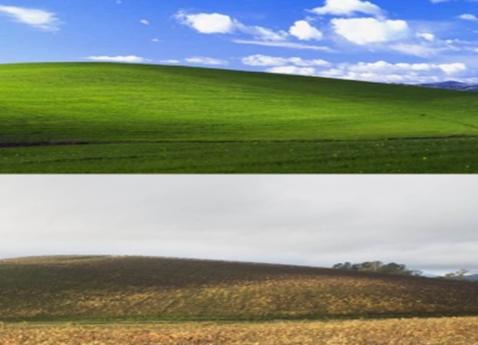
Most of us use Windows XP version in our pc. Not only us, 75% of pc user uses this version. This is the most popular windows version of Microsoft yet. And I guess anyone who's looked at the Microsoft Windows default desktop screen in the last 10 years is very familiar with the following pic. Isn’t you?

Do you remember the pic?I think it’s not tough also for a normal XP user. Because we saw it thousand times on our monitor screen. But have you ever think what place it is or who is the photographer of this pic? Well, this picture belongs from Napa valley of North America & it is the work of photographer Charles O'Rear. This photograph of a grassy Sonoma County, Calif, hill called "Bliss" by Microsoft, earned him the second-highest payout for a living photographer in American history. Bliss is the most seen picture of the world. It has been seen more than billion times yet.
O’Rear has spent a long time of his career with National geography channel. He started being famous working there. And his photograph “bliss” was taken more dramatically in January, 2001. He was 60 years old that time. And in that specific day he was driving his car with his girlfriend on the way of Napa Valley. It was a sunny day. There was Vineyard on the both side of the road & hills. This view of nature attracts O’Rear. He took off from his car & Shot some snaps.

O’Rear was not very hopeful about the pic. He defined it an ordinary one. But after a few days he was informed by his agency that Microsoft has chosen this pic as default desktop screen of their new Windows version XP. They want to buy its copyright. Though the amount of payment is still unknown but it is guessed thatBliss is the 2nd highest paid photography of the world.
Recently, reached by phone, O'Rear tells Seattle Weekly that the payday sort of fell into his lap.Charles O'Rear."My photos are repped by Corbis, so when Microsoft was looking for photographs they went to Corbis," he says. "I got a call one day saying Corbis and Microsoft negotiated to use the photo."
O'Rear says he shot the photo in January of 2001, and that there were no enhancements made to the image at all--though he admits "Microsoft may have taken out a cloud or two."

He says that the intense emerald green of the grass is simply the results of a winter rain."People are always amazed that we can get that green of grass in January," he says. "But out here we definitely can."He also tells us that the hill is now a vineyard and is far less beautiful.In fact, here's a photo of it now. "It's not nearly as beautiful now," O'Rear says.


Disconnect any user except administrator from internet connection


Today I am going to show how to disconnect any user except administrator user from internet connection of WIN7


At first go to search and type gpedit.msc. Then click on gpedit.msc


After opening, it will show computer configuration and user’s configuration. Click on user’s configuration.Thereafter, Administrative Templates→Network→ now find Prohibit access to properties of components of a LAN connection setting, press right button and click on Edit option .


Then select Enabled button. Click OK.


Then if you want to hide properties option you can do that too.All you have to do is to go to Prohibit access to properties of a LAN connection and select Enabled button .click OK


Once you do it after that when another user will open computer and will click on properties. Then there will be shown a message like this

Or, if you hide properties option then..


Congratulation!!your  job is done!!!
     

Better utilization of ‘Send To’


The send to menu of windows is used for many purposes. Especially it is very important for professionals. We can find this command by clicking the right button of the mouse on a file or folder. It is used for sending any file\folder to the desktop, sending the file\folder to the pen drive and for many other purposes. We can utilize the ‘send to’ command even better. For this we have to use a freeware utility software.


The name of this software is ‘send to toys’. For download the software free click here. After installing this software, many more working options get added in the ‘send to’ menu. 


Download link : 


Boost up your pc start up time


You can boot your windows 7 operating system quickly without the helping of third party software. Your windows start up time is bit slow for the operating of many programs in start up. You can boost up your pc by stopping the unusual program at start up. 

For this go to start menu -> control panel -> system & security -> administrative tools -> system configuration -> start up tab.
Now remove the tick boxes of unwanted program to start at the start up. 
ta da you are done...


How to use hidden theme of windows 7


How are you guyzz? Today’s topic is very simple still writing on it for those friends who doesn’t know it. At the time of setting windows 7 we see there are some themes set as default in personalize menu. We usually use these themes.


There are some more hidden themes of windows 7.lets see how to use them.


At first go to the search option. Then type C:\Windows\Globalization\MCT and search it.


Your windows explorer will show you some new themes. These themes are form Great Britain, South Africa, Australia and Canada.


You can select wallpaper or install theme from here.


To install theme it just needs double click. It will be added in “Personalization” pane of your “My Themes”.
Sooooooooo…..now you can enjoy the hidden themes of windows 7.Thanks everyone.